


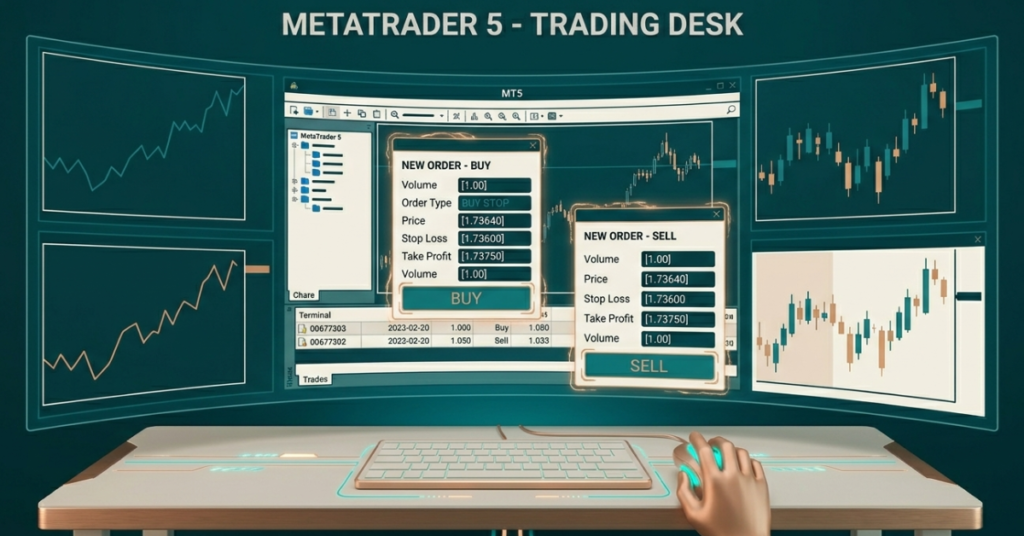
To execute a trade on MT5, open the platform, find your currency pair in Market Watch, open a New Order window (F9), set your lot size, stop loss and take profit, then click Buy or Sell. The trade opens instantly at market price.
Key Takeaways
- MT5 supports two execution types: instant execution (market orders) and pending orders.
- Always set a stop loss and take profit when executing any trade.
- Lot size determines how much you risk per pip, so choose it carefully.
- You can execute trades directly from the chart by right-clicking or using the One-Click Trading feature.
- MT5 also supports automated trade execution through Expert Advisors (EAs).
What Is MetaTrader 5 and Why Do Traders Use It?
MetaTrader 5 (MT5) is one of the most widely used trading platforms in the world. It was developed by MetaQuotes and is used by brokers and traders globally for forex, stocks, indices, and commodities trading. What is MetaTrader 5? covers this in detail if you want a broader overview.
MT5 offers more order types, more timeframes, and more technical tools than its predecessor, MT4. Its order execution system is professional-grade, fast, and supports everything from simple market orders to complex automated strategies.
Types of Trade Execution on MT5
Before placing any trade, it helps to understand the two main ways you can enter a position on MT5:
1. Market Execution (Instant Entry)
This executes your trade immediately at the best available price. You click Buy or Sell and you are in the market. It is the fastest way to enter a trade, used most during active market hours.
2. Pending Orders (Pre-Set Entry)
Pending orders let you specify a future price at which you want to enter. MT5 supports four types: Buy Stop, Sell Stop, Buy Limit, and Sell Limit. These are covered in more detail in guides like what is a stop limit order in forex and what is a limit order.
How to Execute a Trade on MT5: Step-by-Step
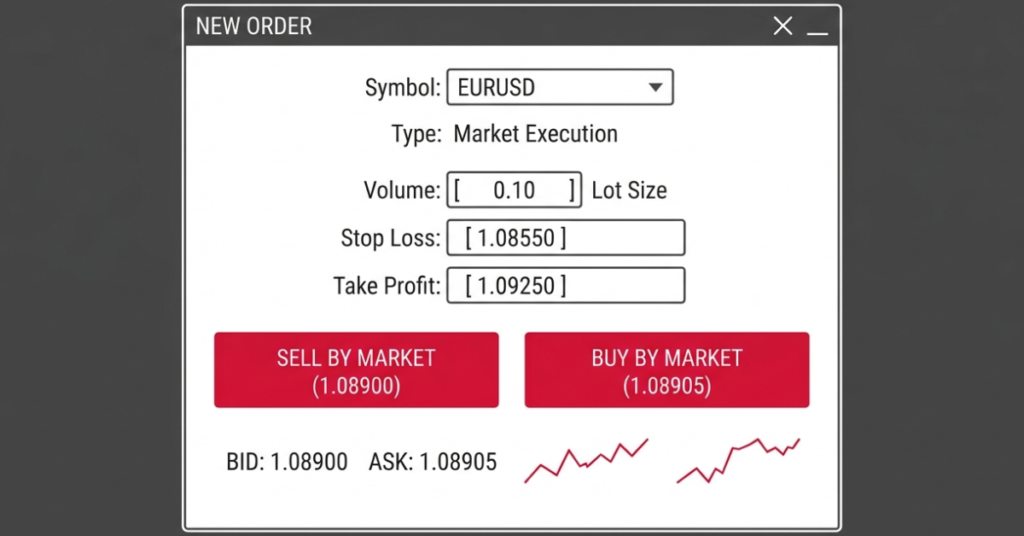
Here is the complete process, from opening the platform to having a live trade running.
Step 1: Launch MT5 and Log In
Open MetaTrader 5 on your computer or mobile device. Enter your login credentials provided by your broker. If you are using Defcofx, your login details are sent to your email after account registration.
Step 2: Locate Your Trading Instrument
On the left side of MT5, you will see the Market Watch panel. This lists all available trading instruments. If your desired pair is not showing, right-click in the Market Watch panel, select Symbols, find your instrument, and click Show.
Step 3: Open the Chart
Double-click on the instrument in Market Watch or drag it onto the chart area. This opens a live price chart. You can adjust the timeframe from the toolbar at the top (M1, M5, H1, D1, etc.).
Step 4: Open the New Order Window
Press F9 on your keyboard, or go to Tools > New Order, or right-click on the chart and select Trading > New Order. The order window will open.
Step 5: Set Your Trade Parameters
In the order window, you need to fill in:
- Symbol: The currency pair or instrument you want to trade.
- Volume (Lot Size): How large your trade will be. A standard lot is 1.00, a mini lot is 0.10, and a micro lot is 0.01.
- Stop Loss: The price level where your trade will automatically close if the market goes against you.
- Take Profit: The price level where your trade will close once you reach your target.
- Comment: Optional. You can add a note to identify the trade.
- Order Type: Choose Market Execution for an instant trade.
Step 6: Click Buy or Sell
Once all parameters are set, click the Buy button (blue) if you think the price will rise, or the Sell button (red) if you think it will fall. The trade executes immediately at the current market price.
Step 7: Monitor the Trade in the Terminal
After execution, your trade appears in the Trade tab of the Terminal panel at the bottom of MT5. You can see the current profit or loss, the entry price, stop loss, and take profit levels all in one place.
Open a Demo Trading AccountHow to Place a Pending Order on MT5
If you do not want to enter the market immediately, use a pending order. Here is how:
- Open the New Order window (F9).
- In the Order Type dropdown, select Pending Order.
- Choose your order type: Buy Stop, Sell Stop, Buy Limit, or Sell Limit.
- Enter the At Price field with the level at which you want the order to trigger.
- Set stop loss and take profit, then click Place.
How to Modify or Close a Trade on MT5
After a trade is open, you can:
- Modify the stop loss or take profit: Right-click the trade in the Terminal and select Modify or Delete Order. Adjust the values and click Modify.
- Close the trade manually: Right-click the trade and select Close Order. Confirm the closure.
- Partial close: Enter a smaller lot size in the close window to close only part of the position.
One-Click Trading on MT5
MT5 has a One-Click Trading feature that lets you buy or sell directly from the chart with a single click. To enable it, go to Tools > Options > Trade and check Enable One-Click Trading. Small Buy/Sell buttons will appear on your chart.
Executing Trades on MT5 Mobile
MT5 is available on both Android and iOS. The mobile version supports full trade execution. To place a trade:
- Open the Quotes tab and select your instrument.
- Tap the instrument and select Trade.
- Set your lot size, stop loss, and take profit.
- Tap Buy or Sell to execute.
MT5 Order Types: Quick Reference
| Order Type | Trigger Condition | Best Used When |
| Market Order | Immediate | You want to enter right now |
| Buy Stop | Price rises to set level | Expecting breakout above resistance |
| Sell Stop | Price falls to set level | Expecting breakdown below support |
| Buy Limit | Price drops to set level | Expecting bounce from support |
| Sell Limit | Price rises to set level | Expecting reversal from resistance |
Trading on Defcofx with MT5
Defcofx is a forex and CFD broker built entirely on MetaTrader 5. When you open a trading account with Defcofx, you get full MT5 access and the following advantages:
- Spreads from 0.3 pips with no commissions, so more of your money stays in trades.
- Leverage up to 1:2000 for maximum flexibility on position sizing.
- Withdrawals processed within 4 business hours, including weekends.
- A 40% welcome bonus on first deposits of $1,000 or more.
- Full access to the MT5 platform with all order types, indicators, and EA support.
If you are new, start with a demo trading account to practice execution without any financial risk. Once you are confident, move to a live account for real trading.
Open a Live Trading AccountCommon MT5 Trade Execution Mistakes
- Wrong lot size: A lot that is too large can wipe out your account on a single move.
- No stop loss: Skipping stop losses is one of the leading causes of major losses in forex.
- Entering at the wrong time: Trading during low-liquidity periods can cause slippage and poor fills.
- Confusing order types: Using a buy limit when you mean a buy stop can cost you.
- Forgetting to check the spread: Always check the spread before executing, especially around news events.
Final Thoughts on How to Execute a Trade on MT5?
Executing trades on MT5 is not complicated once you understand the steps. The platform is built for precision, and once you are familiar with it, entering, managing, and exiting trades becomes second nature. The key is to always set your stop loss and take profit before clicking Buy or Sell.
Defcofx provides a full MT5 environment with competitive spreads and fast execution. Whether you are practicing on a demo account or trading live, the execution process is the same. Get comfortable with it before scaling up your positions.
FAQ
Open the New Order window using F9, set your instrument, lot size, stop loss, and take profit. Then click Buy or Sell to execute at market price.
Start with micro lots (0.01) if you are a beginner. The right lot size depends on your account balance, leverage, and the distance to your stop loss. Use a position size calculator if unsure.
Yes. MT5 is available on Android and iOS. The mobile app supports market orders, pending orders, and trade management.
MT5 supports more order types, more timeframes, a built-in economic calendar, and faster backtesting. Defcofx uses MT5 exclusively.
Yes. MT5 is free to download and use. You just need an account with a broker like Defcofx to access live and demo trading.
Go to the Terminal panel at the bottom, right-click on your open trade, and select Close Order. You can also enable One-Click Trading to close directly from the chart.